Lock in. Keep what you need, hide the rest.
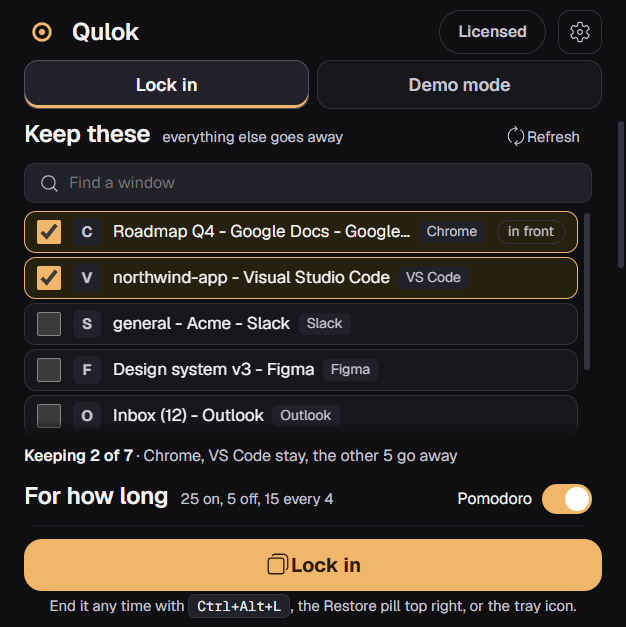
Tick the windows for this block of work. Qulok minimises everything else, hides the desktop and taskbar, silences notifications and runs a timer in the corner. When time is up, or when you say so, it all comes back exactly as it was.
Everything a focused hour needs
One button between you and a clean desk. Nothing is closed, nothing is blocked, nothing leaves your machine.
Keep what you need
Tick the windows for the job. Everything else is minimised, and comes back in the same order when you end the session.
Timers that fit the work
Set a length, pick a Pomodoro with your own focus, break and long break lengths, or run until you stop. Breaks can bring your windows back and put them away again when focus starts.
A proper break
When a focus block ends, a Break panel drops in at the top of the screen with the countdown. Back to work resumes early, Qulok menu ends the session, or leave it and lock in picks up on its own.
A timer in the corner
Small, out of the way, in the corner you choose. Ctrl + Alt + T hides and shows it, so you check in when you want to and not before.
Hide the desktop and taskbar
The icon grid and the taskbar go for the session and return afterwards, untouched.
Silence notifications
Flips the Windows toast switch off so nothing pops up mid thought, then flips it back.
A way out that cannot be missed
A small Restore pill sits in the top right corner. Hide it if you like; the chord and the tray icon still bring everything back.
Crash safe
Qulok writes down what it changed before it changes it. If anything dies mid session, the next launch restores everything first.
Per app rules
Match a process name or a window title and say keep, minimise, or hide. A chat window that opens mid session is dealt with within a second.
Browser tabs
Windows cannot see inside a browser window, so open the tabs you need in their own window and keep that one. Everything else in the browser goes with the rest.
The app, and the desk once you are in
Lock in from 0.5.3, start to finish: tick the windows you need, switch Pomodoro on, press Lock in, and the desk clears. The Break panel arrives when the focus block ends, and stays until you go back to work.
Demo mode, for when you are presenting
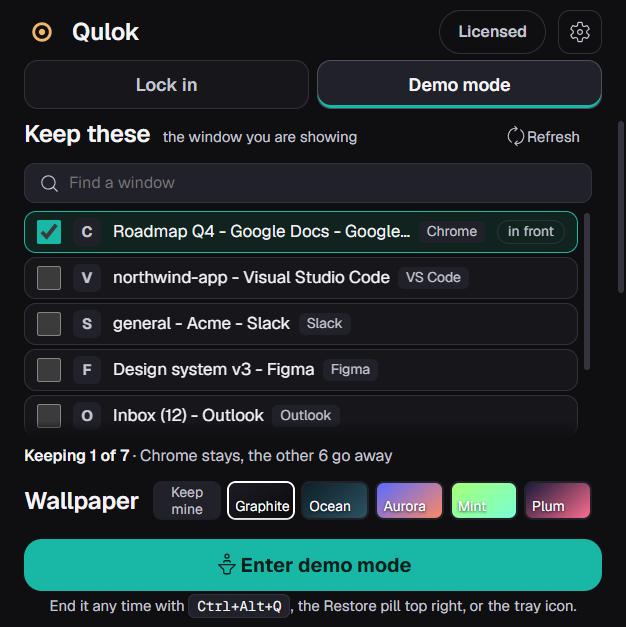
The same engine pointed at a screen share or a recording: keep the window you are showing, swap in a clean wallpaper, hide the icons, silence everything. Presets save a setup by name and Ctrl + Alt + a number brings it back. Ctrl + Alt + Q toggles it from anywhere.
Pricing
Both plans unlock everything on this page: Lock in with every timer, the Break panel, demo mode, presets and per app rules, on 2 of your own PCs. Start with 7 days free, or buy it once.
- Every feature, every update
- Lock in with timers and Pomodoro, plus demo mode
- Presets, per app rules and the screen border
- 2 of your own PCs
- Cancel any time
Your card is taken at checkout and nothing is charged for 7 days. After the trial it renews at $5 a month unless you cancel. Cancel before day 7 and you pay nothing.
- Every feature, every update, for the life of Qulok
- Lock in with timers and Pomodoro, plus demo mode
- Presets, per app rules and the screen border
- 2 of your own PCs
- No subscription
One payment. Restores everything, wallpaper included. Windows 10 (2004) and Windows 11, 64-bit.
Paid through Polar; the licence key and the download are in the receipt email, trial included. Already have a key? Download Qulok for Windows. Unsigned early build: SmartScreen will warn once, choose More info then Run anyway. Coming to the Microsoft Store.
Questions
Does it close my apps?
No. It minimises windows, it never closes anything. Ending the session brings them back in their previous order.
Does it block websites or apps?
No. Lock in tidies the desk and keeps the timer; it does not police what you open. If you bring a window back during a session it stays back.
How does the Pomodoro work?
Focus for the length you set, then a break, with a long break every few rounds if you want one. A soft cue marks each switch and the corner timer shows the phase. If you turn on "bring the windows back during breaks", the minimised windows return for the break and go away again when focus starts.
What happens when a break arrives?
A Break panel appears at the top of the screen with the break counting down. Back to work (Enter) ends the break early and the next focus block starts. Qulok menu (Escape) ends the session and opens the launcher. Leave it alone and lock in resumes on its own at zero. With the break set to 0, the end of a block brings everything back and opens Qulok.
What does "silence notifications" actually change?
It turns off the Windows notification master switch (the same one in Settings, System, Notifications) and turns it back on when the session ends. Focus Assist has no supported switch, so it is not touched.
Will the timer or the pill show up in a recording?
No. The pill, the timer and the screen border are marked as excluded from screen capture, the same flag a password manager uses, so captures and shared screens never show them.
My wallpaper is Windows Spotlight or a slideshow. Will it come back?
Yes. Lock in only changes the wallpaper if you pick one under Wallpaper (Keep mine is the default), and Demo mode swaps in the one you chose. When the session ends, Qulok puts back the image that was showing when it started; Spotlight and slideshow modes may need re-selecting in Personalisation.
How does the free trial work?
Pick the monthly plan and start the trial at checkout. Your card is taken, nothing is charged for 7 days, and the licence key arrives in the receipt straight away, so Qulok works in full from the first day. Cancel before the 7 days are up and you pay nothing; the key stops working when the trial ends. Otherwise the plan renews at $5 a month until you cancel.
Monthly or lifetime?
Both unlock every feature and every update on 2 of your own PCs. Monthly is $5 a month after the 7 day free trial and can be cancelled whenever you like. Lifetime is $29 once, for the life of Qulok, with no subscription.
How do I cancel?
Go to qulok.com/manage and paste your licence key. No account or sign in needed, and you can cancel at any time. If you cancel during the trial you are not charged at all. Qulok keeps working until the end of the time you have paid for.
How do updates work?
Qulok checks for a new version shortly after it opens and every few hours, never while Lock in or Demo mode is on. When one has downloaded it asks: Update now, or Next time I open Qulok. Settings has a Check for updates button as well, so there is no new installer to fetch from this site.
Does it send anything anywhere?
Nothing you work on leaves your PC. The only network use is the licence check with Polar, once a day, and the update check with qulok.com.
Questions, a key that will not activate, or help with a subscription: email support@sundrymill.com.
Mac release coming soon
Want to know when it's out? Leave your email and we will send one note when Qulok for Mac ships.